1
Start on the Home Page
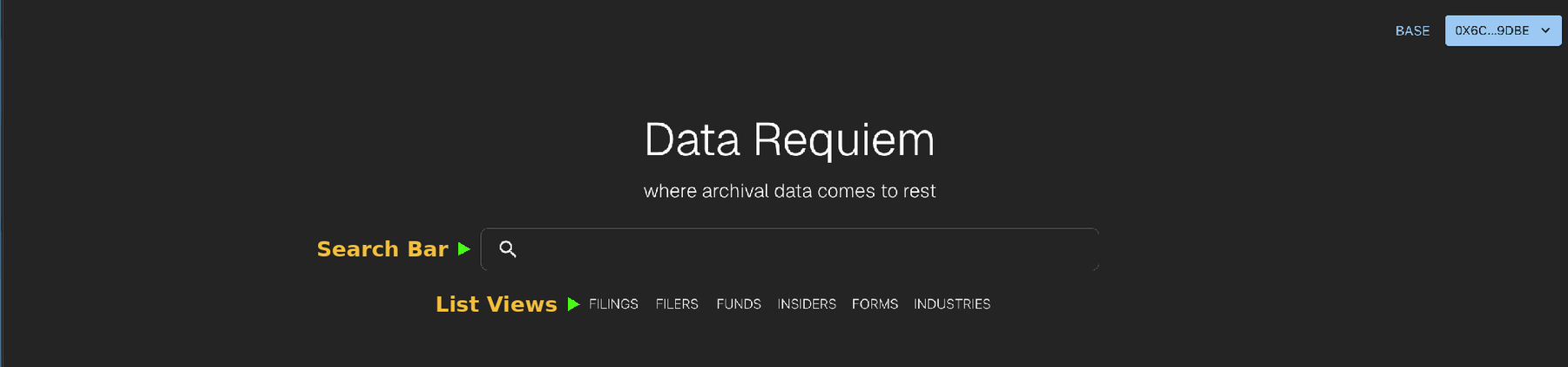
When you log in, you arrive at the Data Requiem home page. Two paths to find what you need:
- Search Bar: Type any entity name to jump directly to its profile or details page.
- List Views: Click category tabs (FILINGS, FILERS, FUNDS, INSIDERS, FORMS, INDUSTRIES) to browse pre-organized lists.
2
View Data in a Table
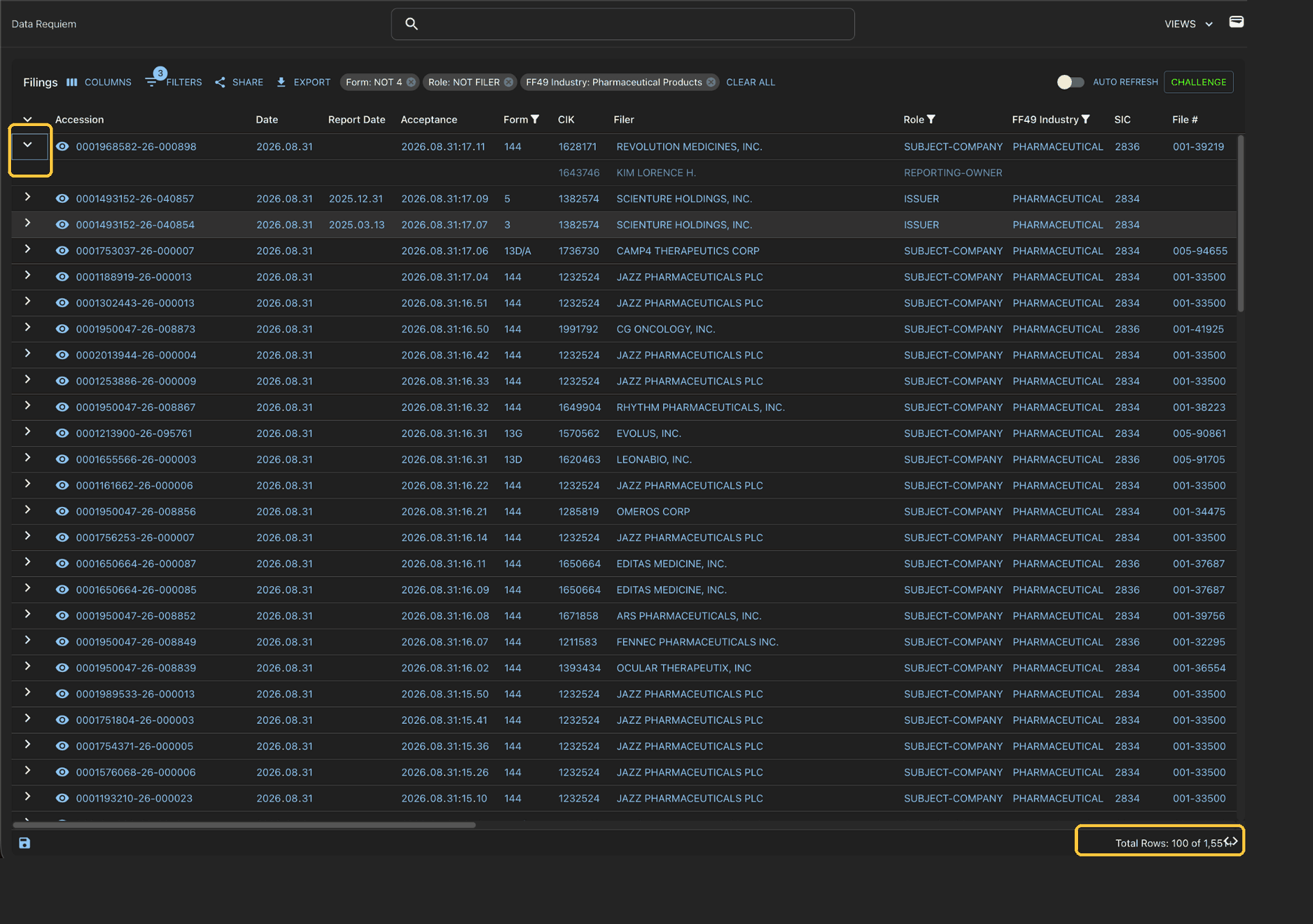
Selecting a category shows your data in a tabular view. Each row is an entity; columns display different data points.
- Row Expansion: Click the arrow to expand and see additional details for that row.
- Total Count: Bottom right shows how many rows match your current view and filters.
3
Filter Your Data
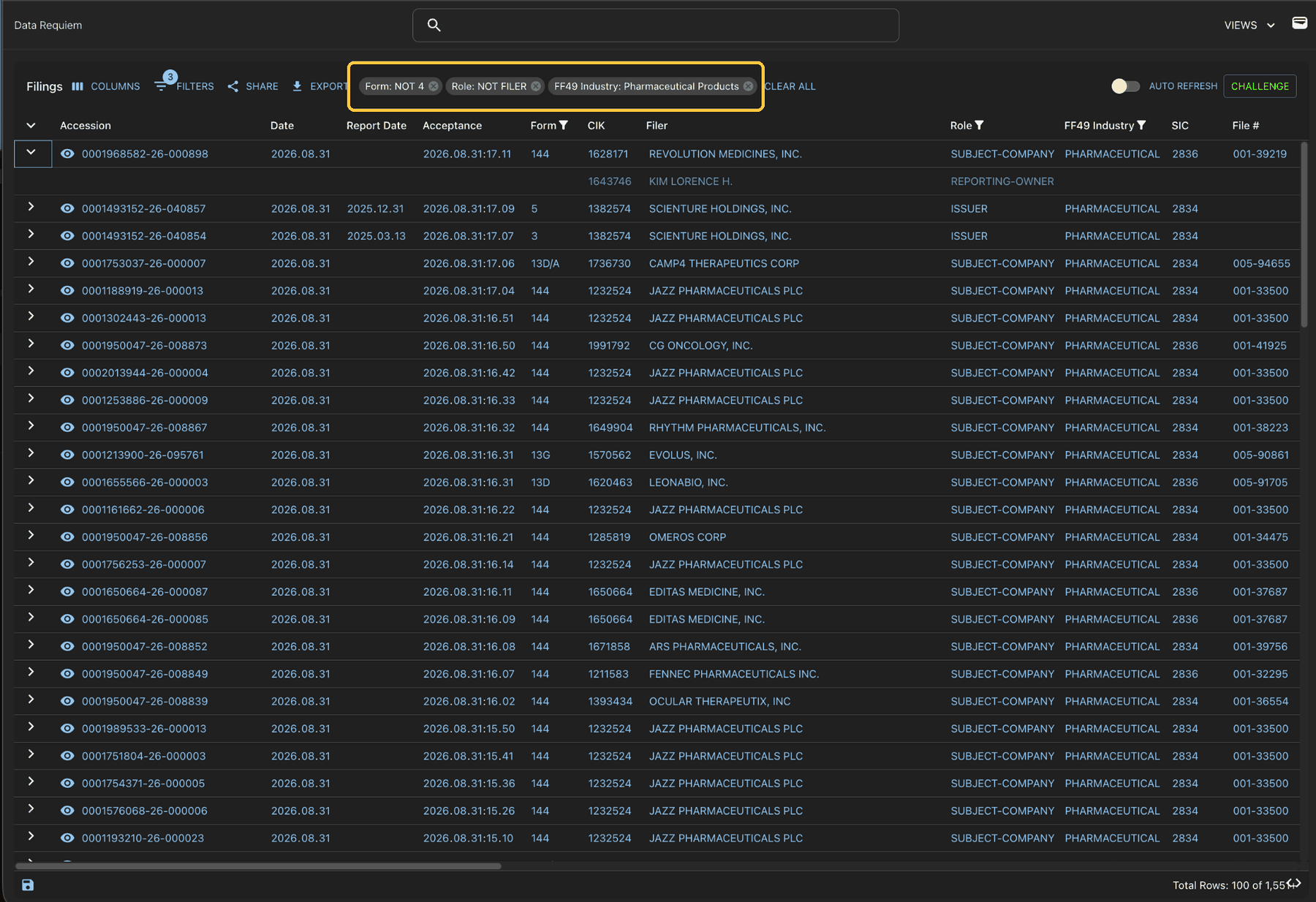
Instantly filter your results by clicking on any data value:
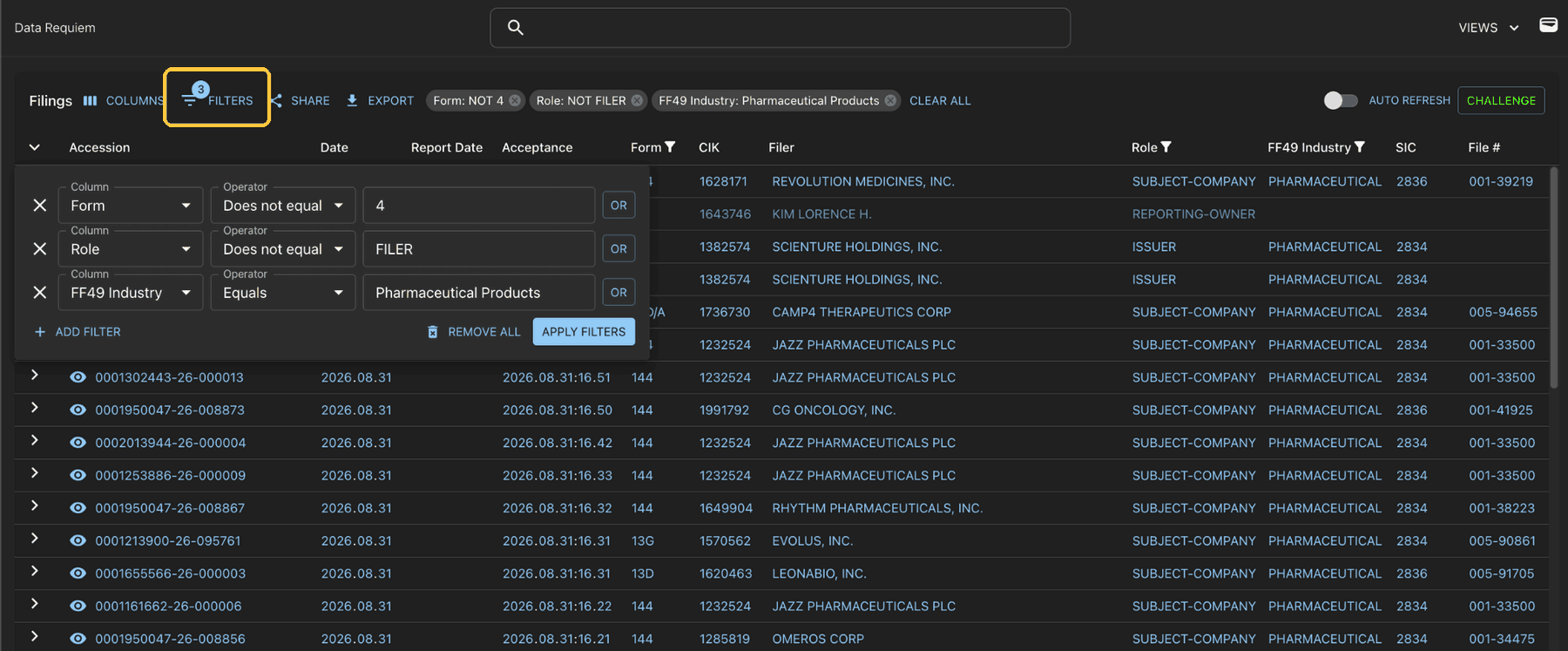
- Active Filters: See all applied filters in the summary bar. Each badge shows exactly what you're filtering by — click the X to remove one.
Quick Click Filtering: Click any cell to instantly filter by that value. Double-click for a "NOT" filter (exclude that value). Your filters appear immediately in the summary bar.
4
Advanced Filtering
For complex queries, use the advanced filter dialog:
- Column Selection: Choose which data field to filter on.
- Subcolumn: Some columns have subcategories — refine your filter further.
- Operator: Choose how to match: equals, contains, greater than, etc.
- Value Input: Type or select the value you're filtering for.
- Apply Filters: Execute your search and see results.
5
Customize Columns
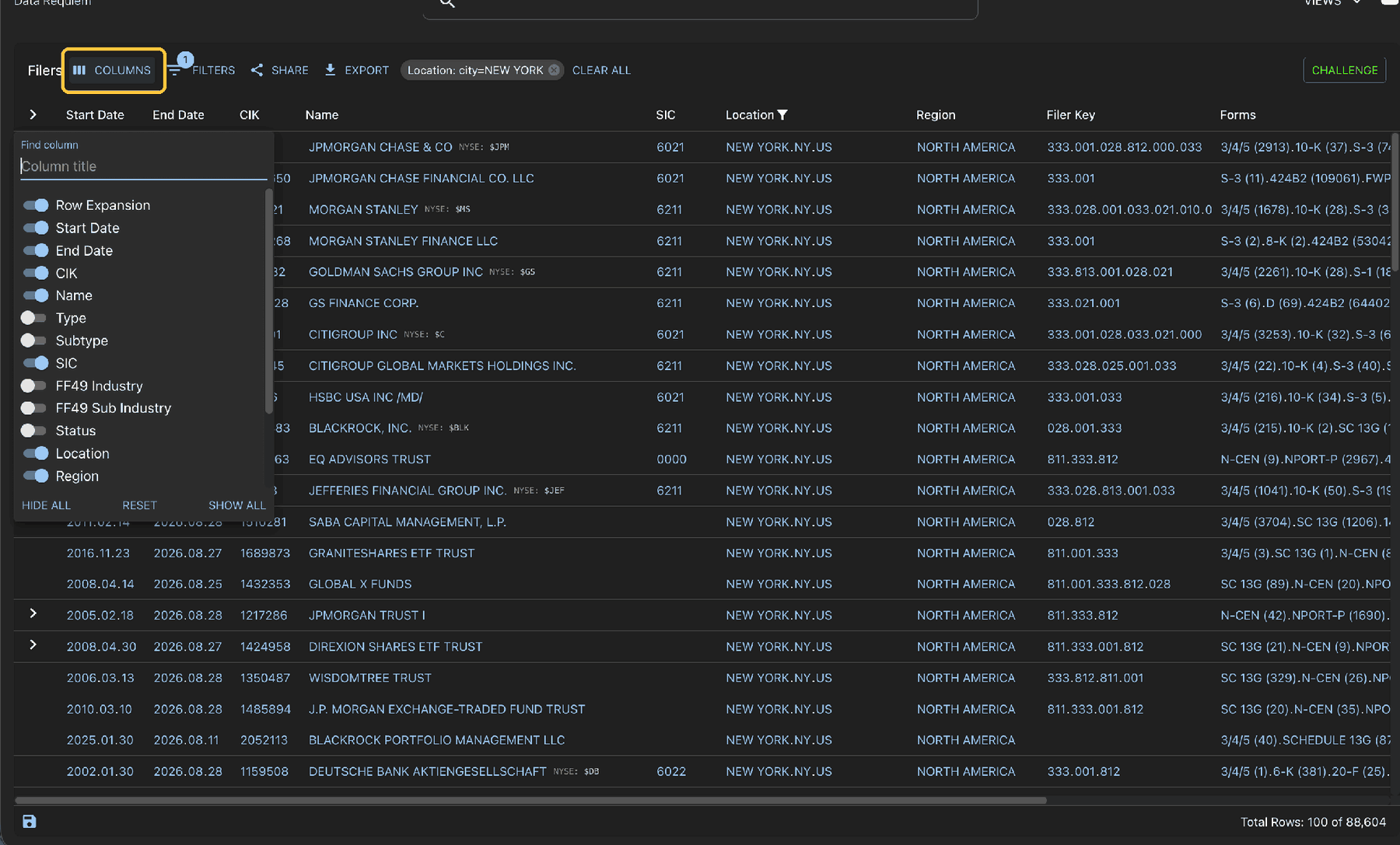
Tailor the table view to show only what matters to you:
- Column List: All available fields for this view are listed with toggle switches.
- Show / Hide: Toggle columns on and off. Rearrange by clicking and dragging column headers.
- Reset: Restore the default column layout at any time.
6
Find Entities Quickly
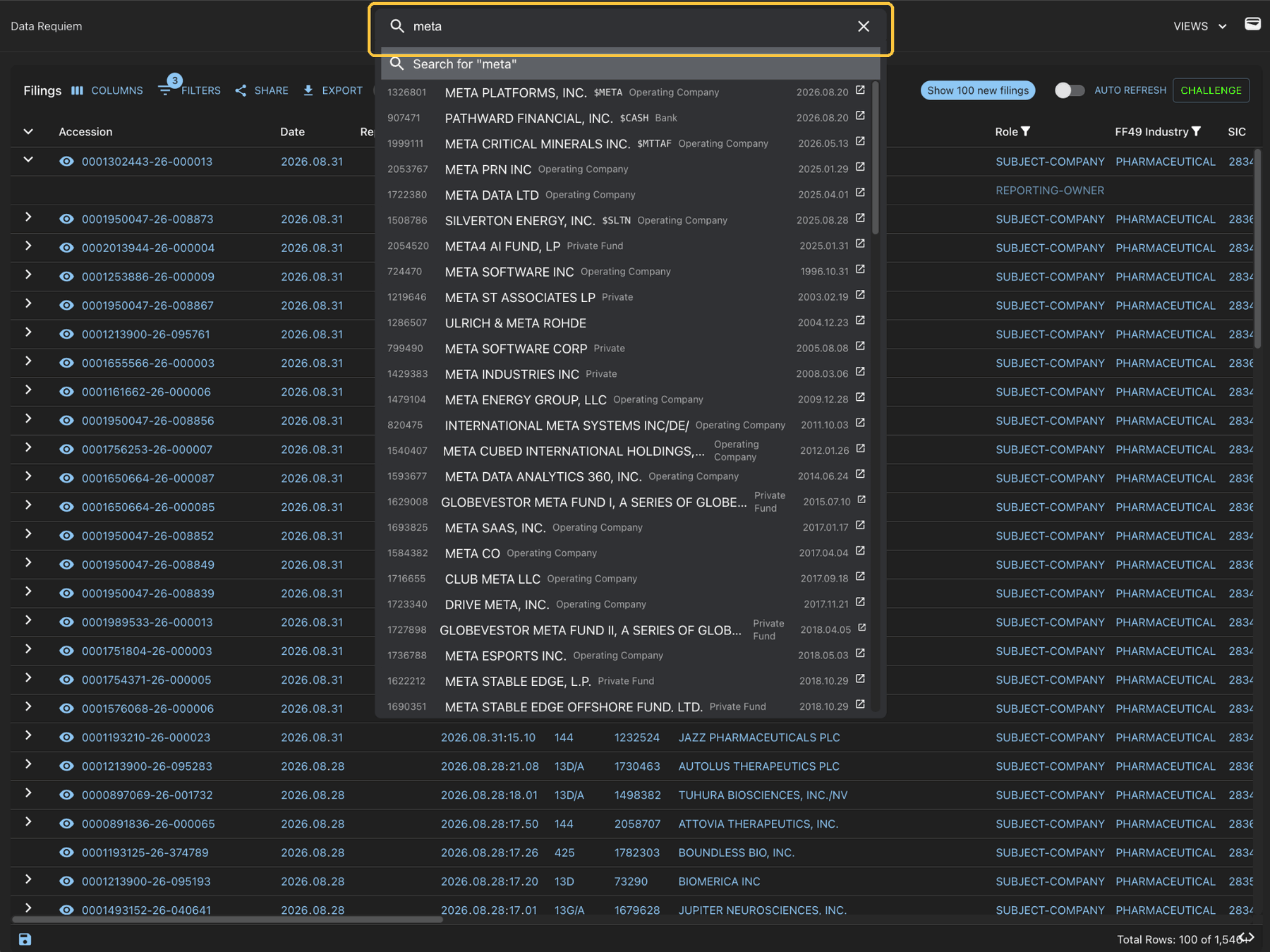
Search for any entity directly from the home page using the main search bar.
- Search Bar: Type any entity name (company, person, ticker symbol, CIK) to instantly see matching results, with names and related identifiers in the dropdown.
7
Explore the Entity View
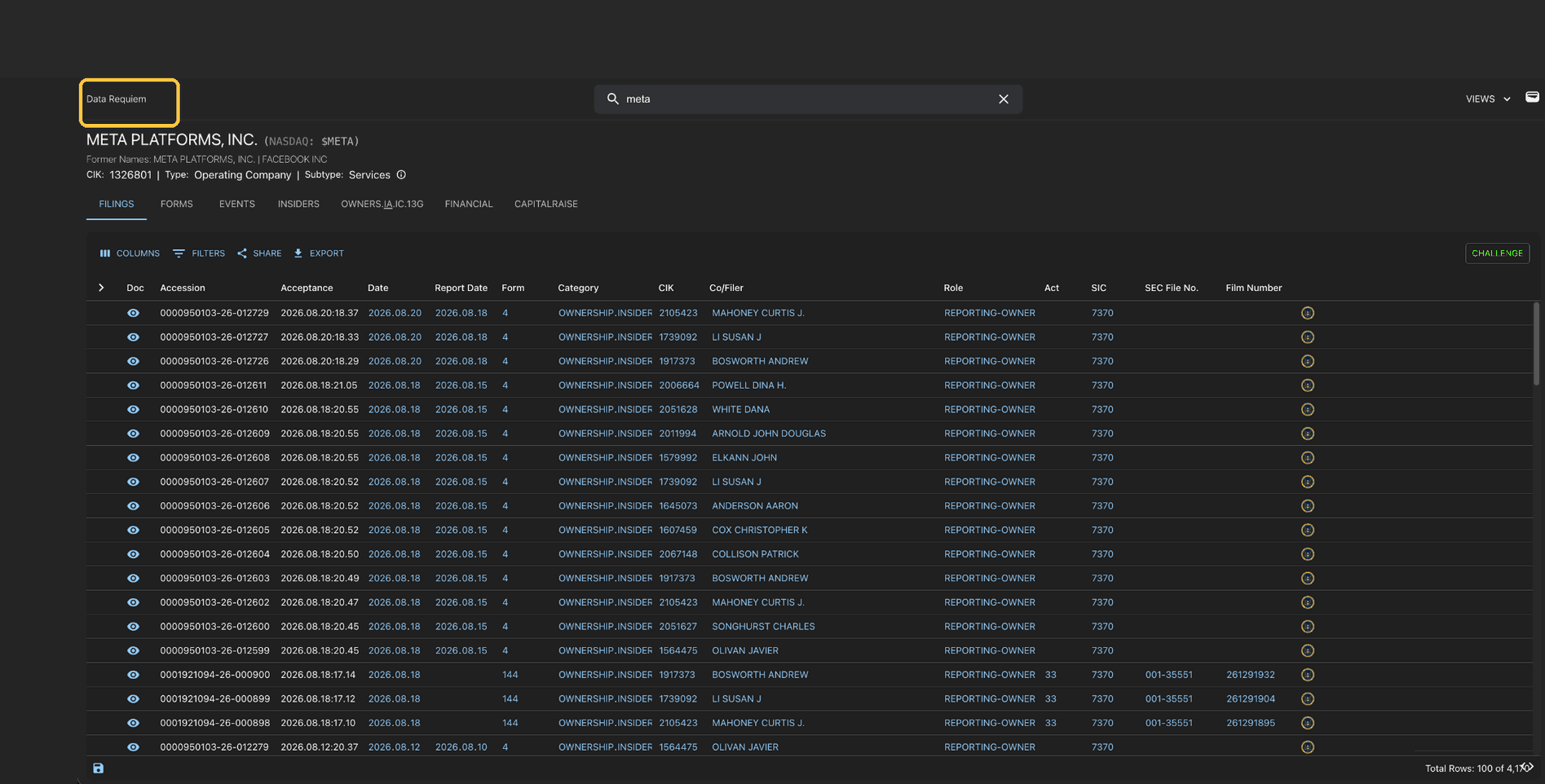
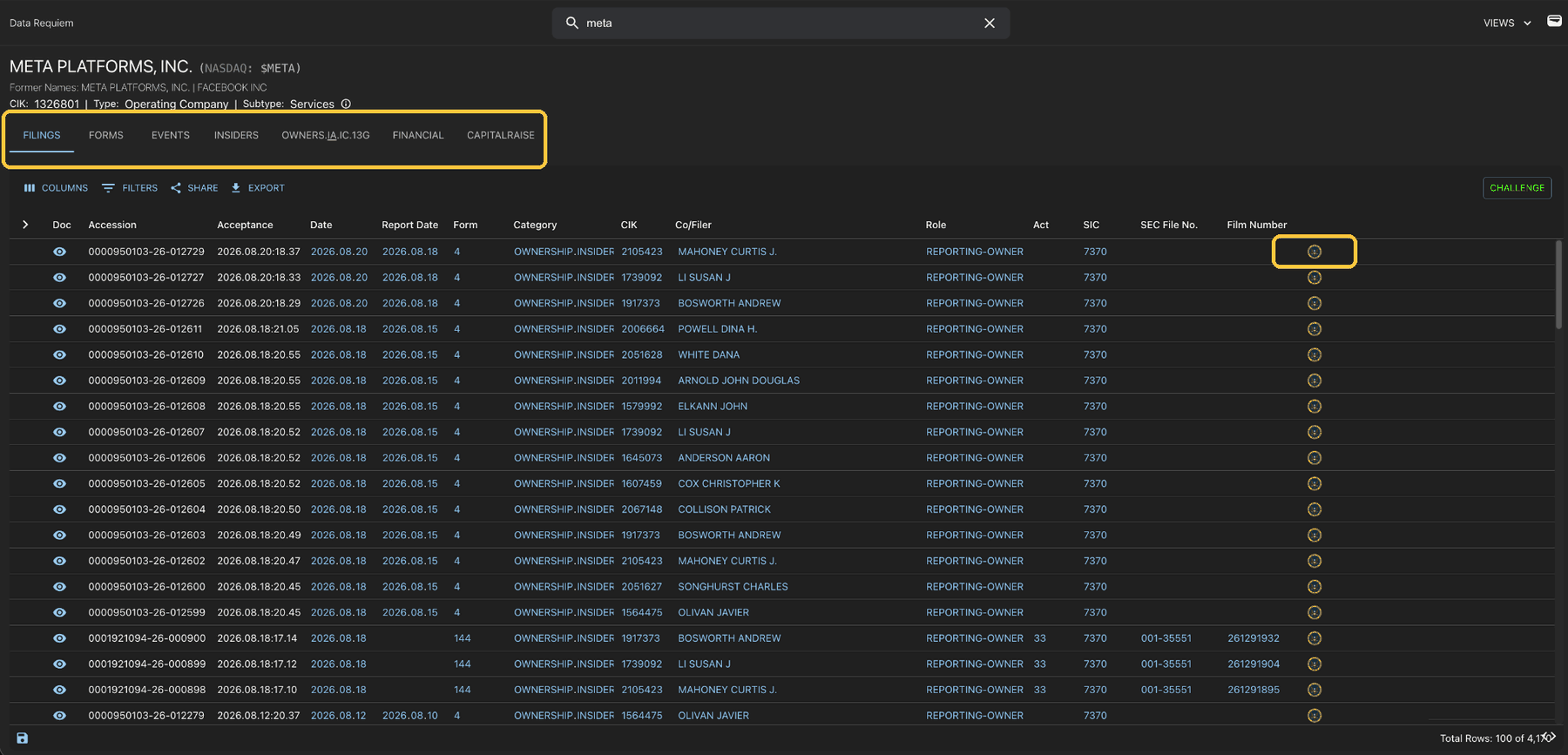
Click linked data (underlined when you hover) to dive into the full entity profile:
- Tab Navigation: FILINGS, FORMS, EVENTS, INSIDERS, OWNERS, FINANCIAL and more — each tab shows a different dimension of the entity.
- SEC Link: Far-right column contains direct links to source documents in the SEC's EDGAR database.
Data is "As Reported": We show exactly what filers submitted to the SEC, including errors. Amended forms are included so you can see self-corrections.
8
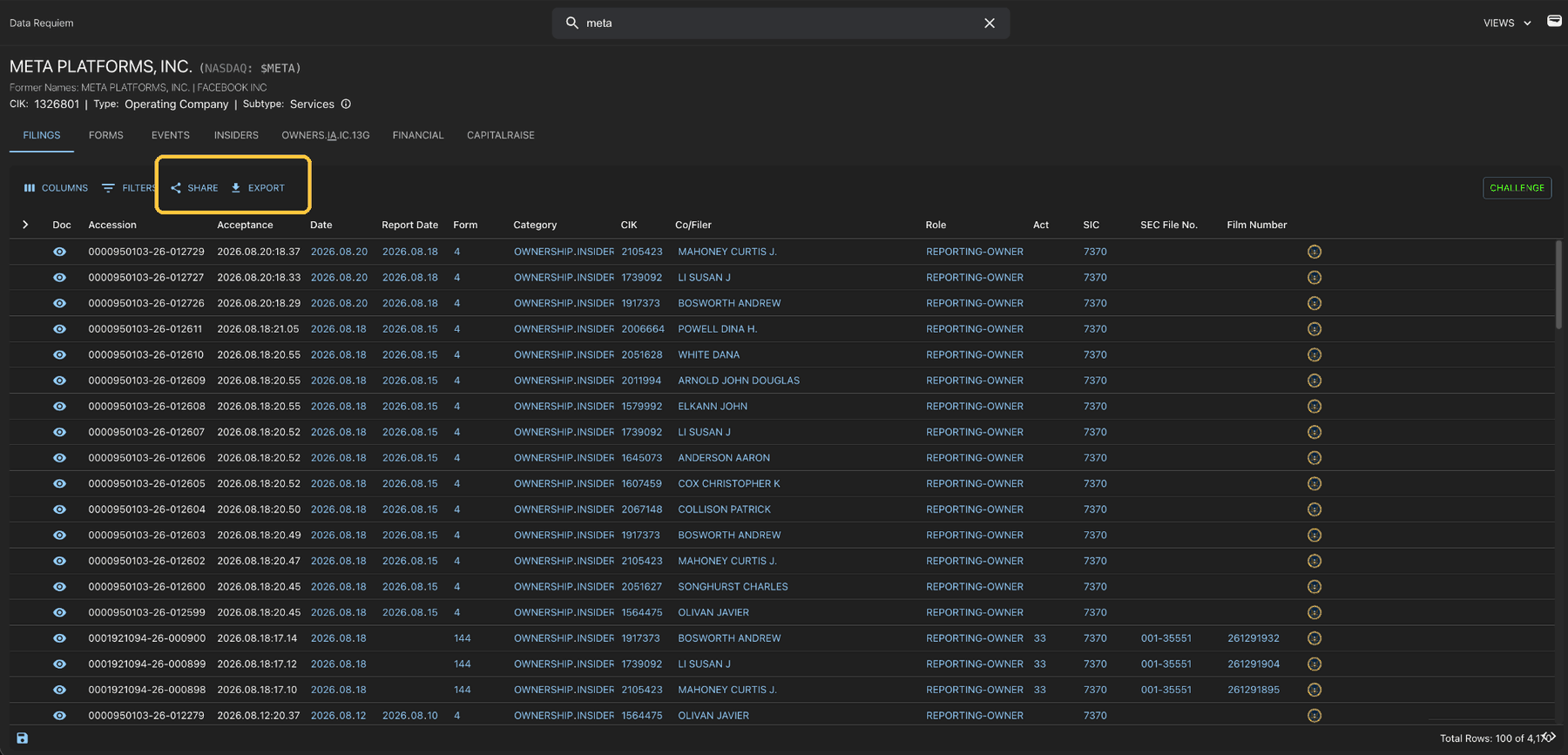
Export / Share Data
- Export: select to download a .csv file
- Share: select to share your view via email, LinkedIn, or create a sharable URL
9
Return Home
- Return Home: Select Data Requiem in the top left at any time to return to the home page.